
Phoenix Code Editor
11/14/25About 2 min
Phoenix Code Editor
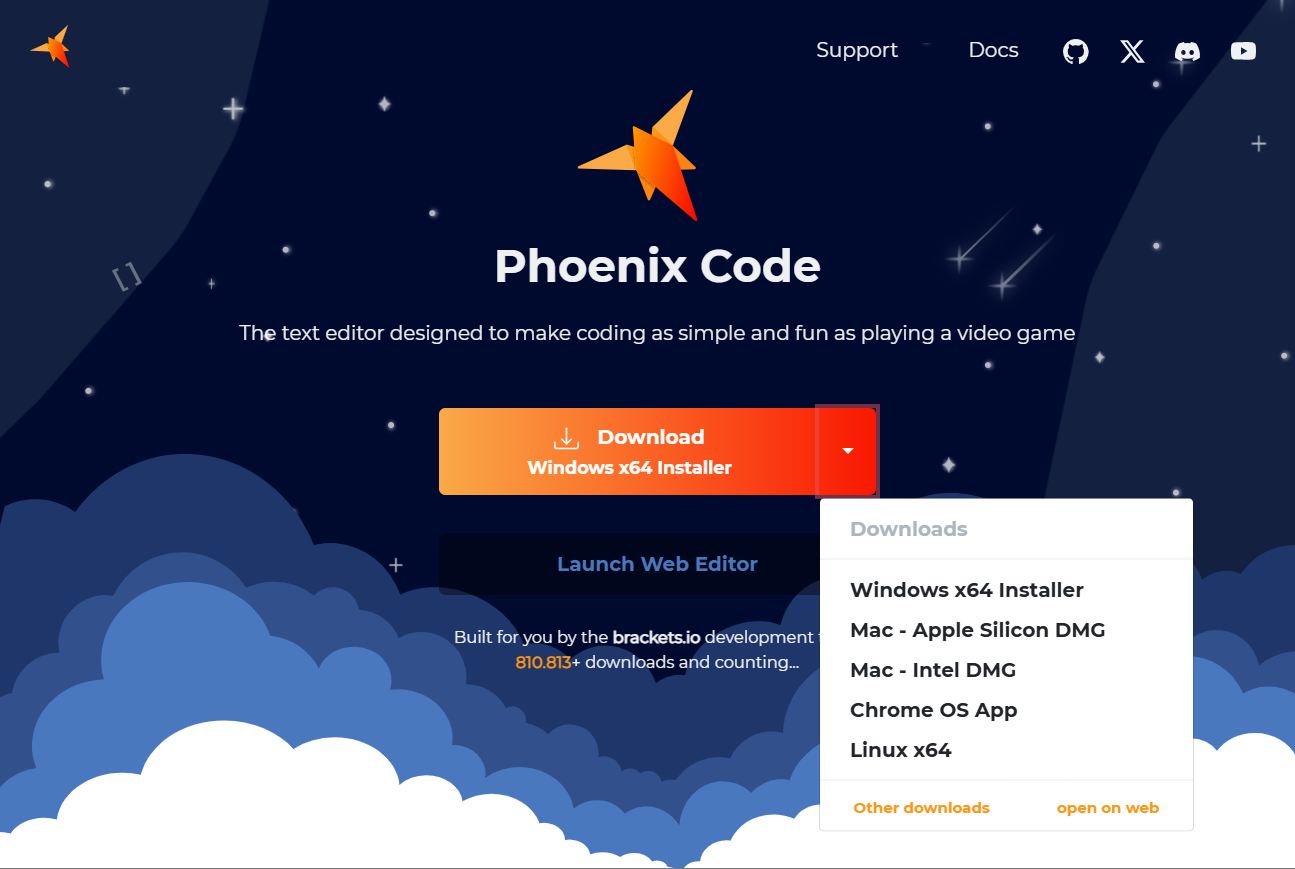
- Download from Phoenix Code Editor
REMARK
- The Phoenix Code Editor is available for Mac, Windows, and Linux. Make sure to select the appropriate version for your operating system when downloading from the Phoenix Code Editor website.
Installation
- Run the .exe installation file
- Choose a language for your editor. If available, Phoenix will automatically switch to the language that is set on your device.

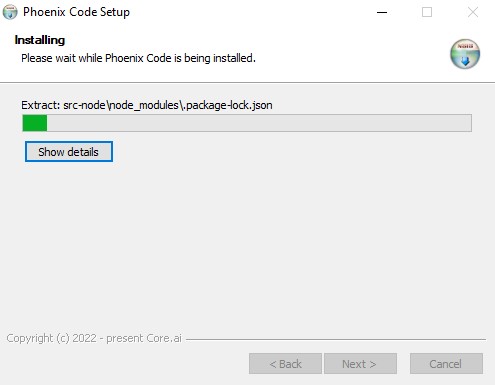
- Click Next >, I Agree, Next > and Install. The program is now installing.
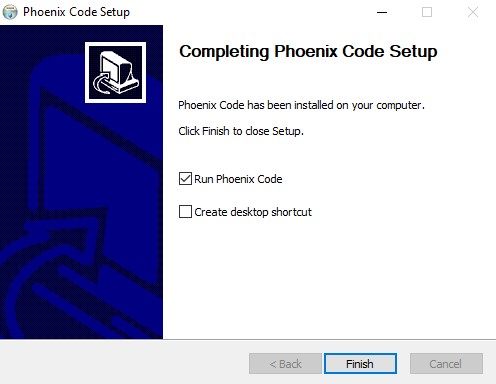
- Choose if you want a desktop shortcut or not, and click Finish.
LANGUAGE
If Phoenix opens in another language than English, please change the editor language to English (UK).
- Click on "Debug" in the top navigation bar, and select Switch Language in the dropdown menu.
- Select "English (UK)" as your preferred language and press "Reload Phoenix code".
Extensions
Phoenix extensions are tools/functionalities we can import in Phoenix to make our life as a web developer much easier
Choose File > Extension Manger... or click the Extension Manager icon
 in the right pane to open the Extension Manager
Install the following extensions:
- Emmet
- Color Highlighter
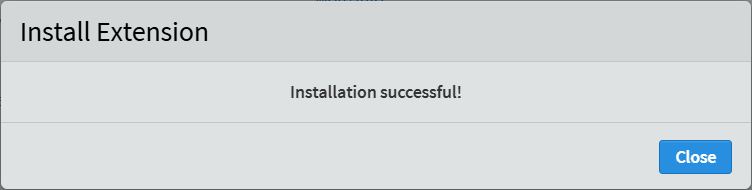
Install both by searching for them
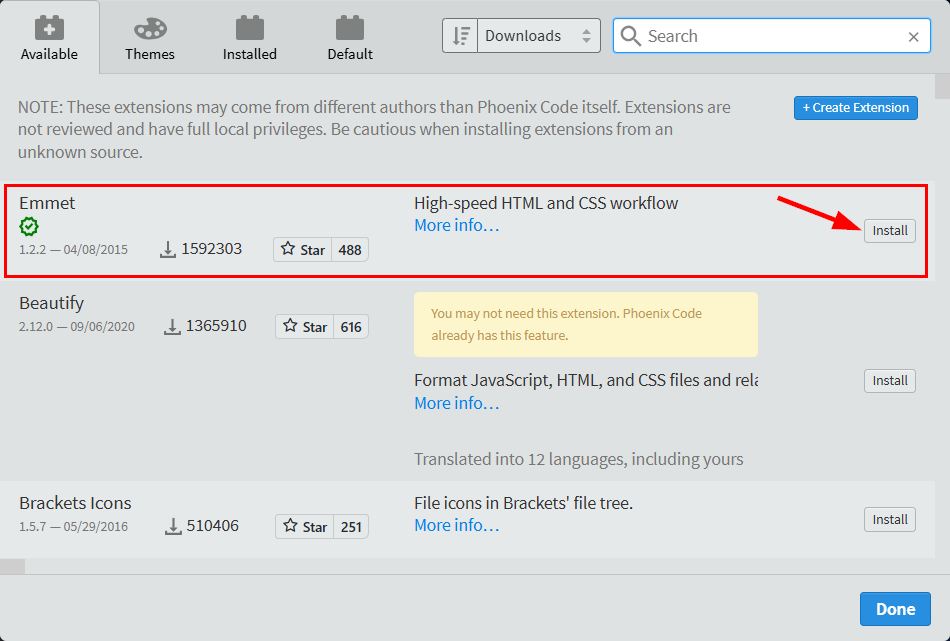
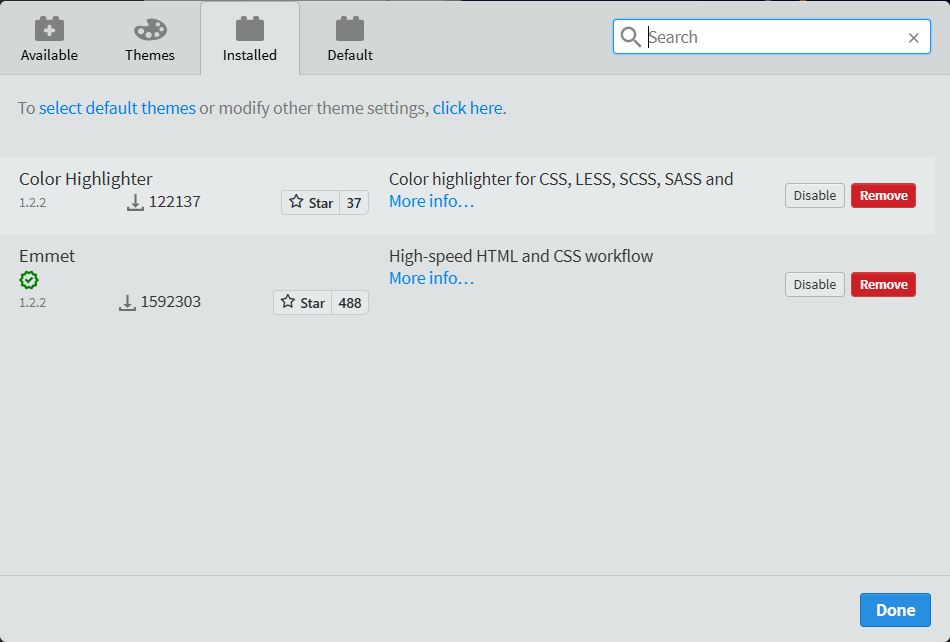
After installing them, both plugins should be shown on the Installed tab
Emmet
- Emmet is a plugin for many popular text editors which greatly improves a webdesigner's workflow by (amongst other things) providing abbreviations, allowing you to type less code
Color Highlighter
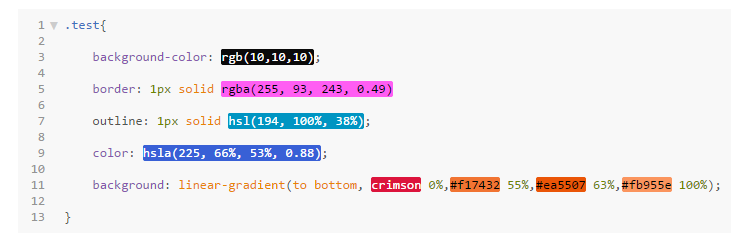
- Color Highlighter is a plugin that highlights a coded color (name, rgb, rgba, hexadecimal, ...) with the actual color:
Features
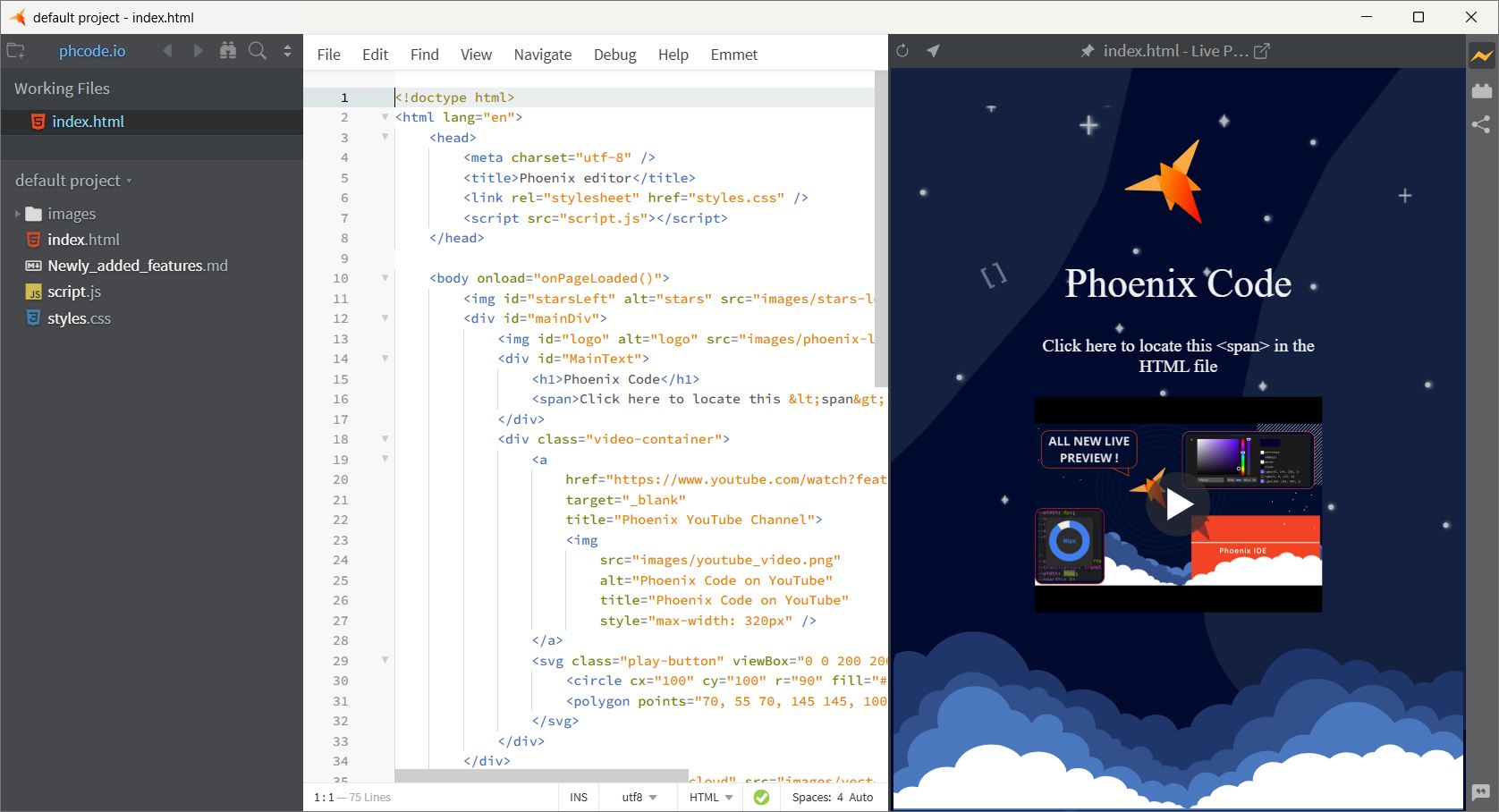
- In the left pane, you get an overview of the files that are open (Working Files), as well as the working directory (default project)
- You can change the working directory to any directory of choice by clicking on it
Beautify
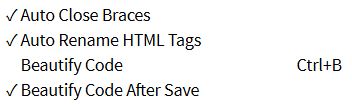
- Beautify is a feature for Phoenix that formats your HTML, CSS and JavaScript source code
- To automatically (re)format your code
- Go to Edit > Beautify Code After Save and check that
- After every save, your code will now reformat
Live preview
- This feature enables us to see the changes in the editor or the browser as soon as we edit the code (even without saving)
- Make sure a HTML-file is open (active), and go to File > Live Preview, use the shortcut
CTRL+ALT+Por click the Live Preview icon
Split screen
You can split the Phoenix window (vertically or horizontally) using the icon
 at the top right of the left pane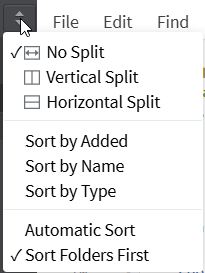
- As such, you can simultaneously view/edit different (HTML and CSS) files
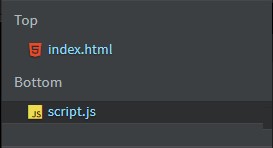
- You can move opened files from the top to the bottom pane (or from the left to the right pane) or vice versa by dragging and dropping the file name
Shortcuts
| shortcut | action |
|---|---|
CTRL+ALT+B | Beautify code |
CTRL+ALT+P | Start Live Preview |
CTRL+SHIFT+A | Surround code with ... |
CTRL++ | Increase font size |
CTRL+- | Decrease font size |
CTRL+/ | One line comment |
CTRL+SHIFT+/ | Multi line comments |
CTRL+E | Quick edit CSS style on element |
ALT+click | Multi cursors |